Dolphin + Dualshock 4 Setup on Windows
This guide is intended for educational purposes only. I do not host, distribute, or provide links to copyrighted materials. While emulation software is legal, downloading copyrighted ROMs without authorization is a violation of copyright law. Readers are encouraged to use their own legally obtained ROMs. This article makes no claims to legal advice.
You will need:
- Sony Dualshock 4 Controller (duh)
- Windows 10 or 11
- Either Bluetooth or Micro USB cable
- Dolphin Emulator
- ROMs (explained shortly)
- DS4Windows
- ViGEmBus
- HidHide
Preface
Dolphin Emulator functionally replicates the original Nintendo Gamecube (2001) and the Nintendo Wii (2006) game consoles. The Sony Dualshock 4 (abbv. DS4) is the game controller made for Sony Playstation 4 (2013).
ROMs (read-only memory files) in emulation, is essentially a digital copy of a game packaged in a singular file. The files are formatted to be read by an emulator, similar to originally inserting a disc to a console. So to actually emulate games in the first place, we would need ROMs.
Obtaining ROMs isn’t very straightforward. Unauthorized distribution of ROMs infringes upon the intellectual property rights of game publishers; therefore, “Downloading ROMs” is illegal, and constitutes software piracy. While sites like Vimm’s Lair claim to exist for digital preservation, they are not authorized distributors, and are largely unverified and may pose security risks to your computer.
I would say to obtain your own ROMs legally. This is usually done by purchasing a physical copy, then “dumping” the contents of your cartridge/disk to your computer. This way, you can safely guarantee that your ROM is from an official source that you verified yourself.
At this point, I will assume you have all the necessary software installed, and everything ready.
Connecting the Controller
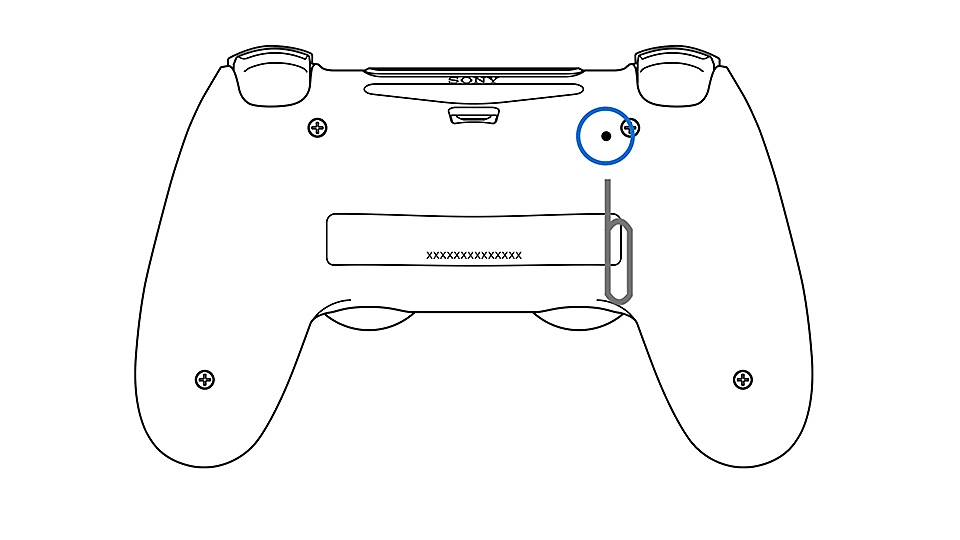
You can reset your DS4 Controller by turning it upside down and inserting a pin on the hole near L2, then press-and-hold it for at least 5 seconds.
Micro USB
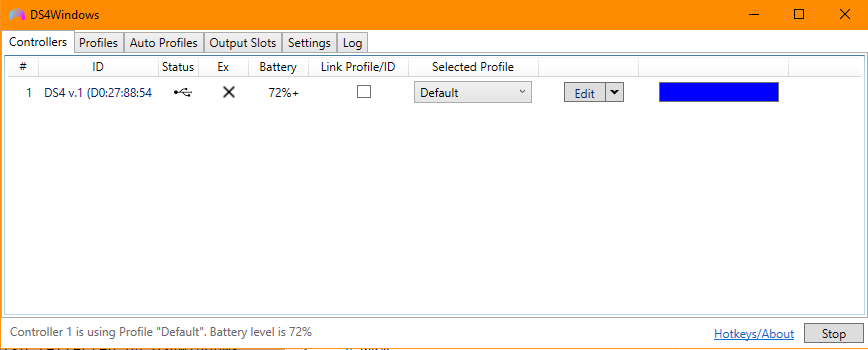
Simply connect the Micro USB cable from the DS4 Controller to your PC. A successful connection is indicated by default a steady blue light on the controller, and the status is reflected on DS4Windows. When connected to the computer via Micro USB, it is also charging simultaneously. This method is the most reliable, and best for multiple controller setups.
Bluetooth
Turn on the controller by pressing both SHARE and the Playstation Buttons. It is trying to pair by indicating a flashing white light.
Connect the Wireless Controller via Bluetooth on Windows like you would any normal Bluetooth device. A successful connection is indicated by a steady blue light.
You can also charge simultaneously when using Bluetooth. This method is best for single controller setup, and convenient. The same process applies when connecting the PS4 controller to mobile devices.
DS4Windows
Go ahead and open DS4Windows, and get familiar with it. By default, the controller is already configured out-of-the-box and you only need to tweak the profile configs or settings if needed.
Controller Mapping on Dolphin
Obviously, playing Gamecube/Wii games using a PS4 Controller is really unorthodox, so expect a lot of compromises.
Have Dolphin opened, then click on `Controllers'.
| Gamecube | Wii |
|---|---|
Open Controllers |
Open Controllers |
Within Gamecube Controllers |
Within Wii Remotes |
Click on Configure for Port 1 |
Emulate the Wii's Bluetooth adapter |
Click on Configure for Wii Remote 1 |
In any case, you would want SDL/0/PS4 Controller selected under Devices to run it through DS4Windows.
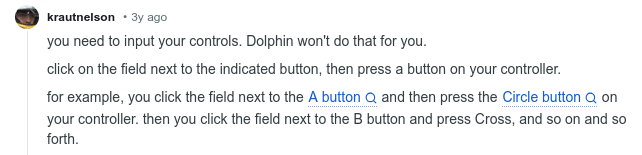
make your own decision as to where you want each button to be.
Please look at the Dolphin Emulator Controller Configuration Guide
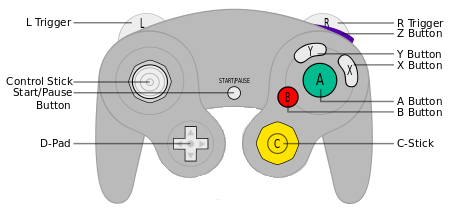
Original Gamecube Controller:
Wiimotes
If you are not familiar with Wiimotes, I highly suggest you read this.
Wii Controls Configurations:
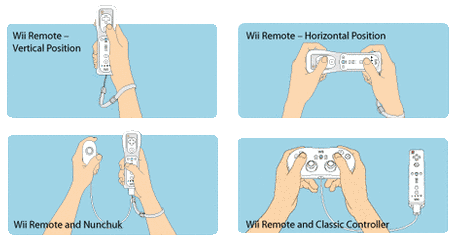
Depending on the game, the way you hold and operate the Wii Remote will vary.
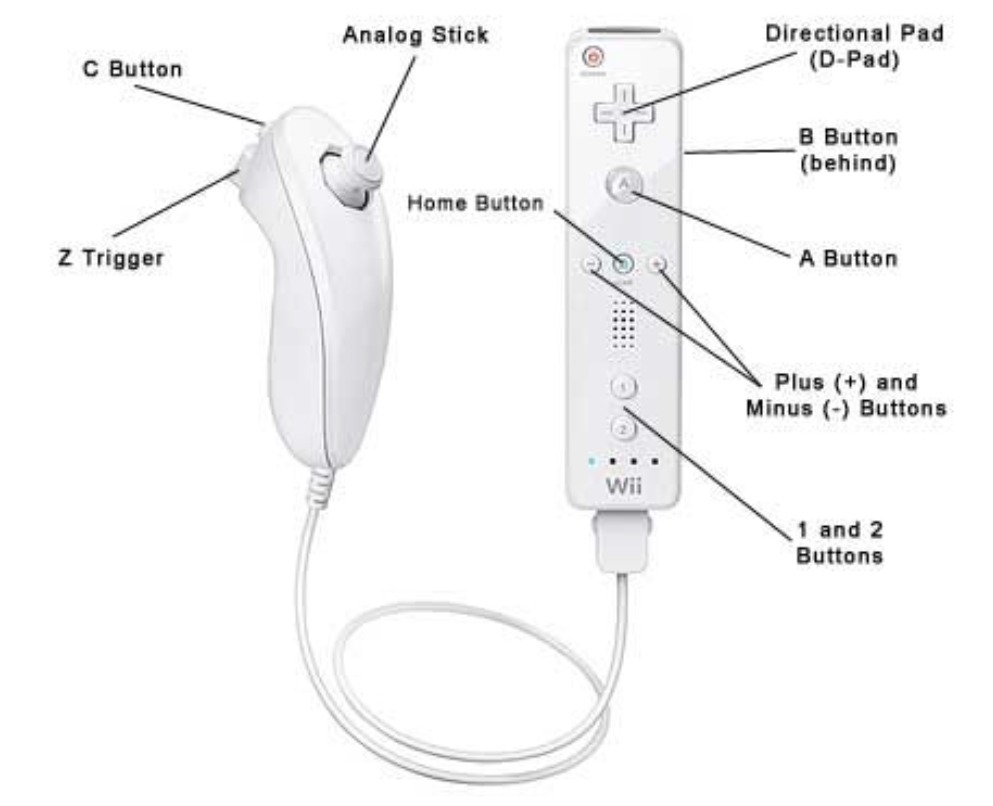
Wii Remote and Nunchuck:
Wii Classic Controller:
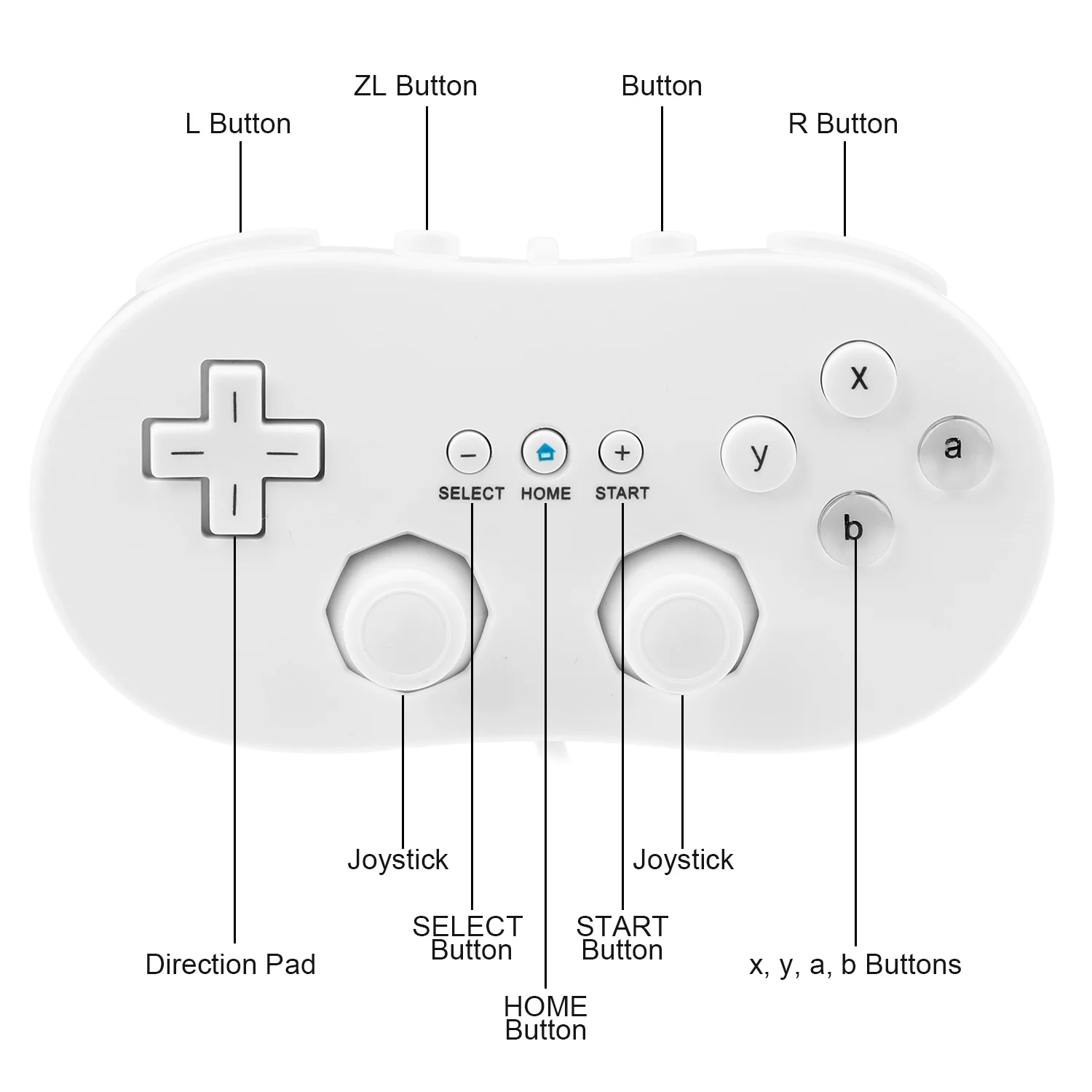
As to what setup to use is really contingent on a game-to-game basis, as some setups are game-exclusive like Super Mario Galaxy with the Nunchuck. But if a game allows controller flexibility like Smash Bros. Brawl, I’d naturally prefer the Classic Controller setup.
Games like Skyward Sword or Monster Hunter Tri control vastly different to each other, and naturally, I have different profiles for different games, which is why…
…You can go to my Github repo for the different controller profiles I have made for myself. It may or may not work for you as well as it does for me.
- Within the Github repo, press the green
Codebutton, thenDownload ZIPto retrieve the files. - Unzip, then copy the
GCPadandWiimotefolders + contents to your user directory located at%AppData%/Dolphin Emulator/Config/Profiles(if installed normally).