Salvaging an Old PC to be a Server
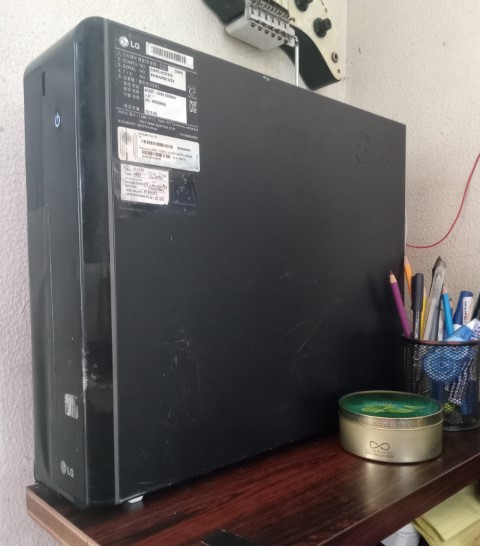
This is an old LG PC unit from 2013, and is to be used once again as my own server. This server is going to be a very basic and very simple file server, and is going to be connected to a local network. Inspired by this video, I will take this ancient and otherwise unusable machine to that it may be inspiring and useful once again.
The PC
This secondhand LG was bought not too long ago for more or less around 3 G and to me, I’m not sure if it has even seen better days. It’s not the most powerful machine to say the least, with its paltry Intel Core i3-2120 processor. But it is working however, and that’s all that’s needed something like this.
I retrofitted this project with a Western Digital 1 TB Hard Drive and a Kingston 240 GB SSD to install Windows to1. I also upgraded it to 6 GB of RAM. Once the computer worked, I installed Windows 10 just like I would any other desktop PC. This set up will only work amongst Windows Pro systems.
Setup
My 1 TB Hard Drive has two partitions: HDD 1, and HDD2. I want to access these partitions on a local network and to have full control of the contents within.
I also want to set up a local Remote Desktop Connection so that I can get access to the machine without always using external peripherals or a KVM switch.
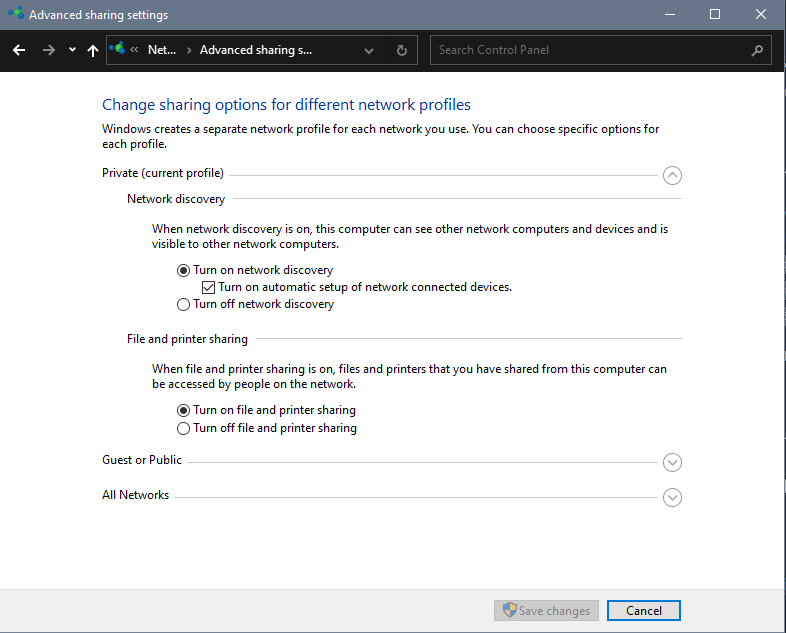
First, do connect the server to your network and using Ethernet, to make things simpler. Make sure you are connected to a private network profile. To confirm this go to Control Panel > Network and Sharing Center > Advanced Sharing Options, and turn on both Network Discovery and File and Printer Sharing.
Go to Settings > System > About and note the server’s device name e.g. DESKTOP-#######.
Share a drive (or folder) in a network
Server-side
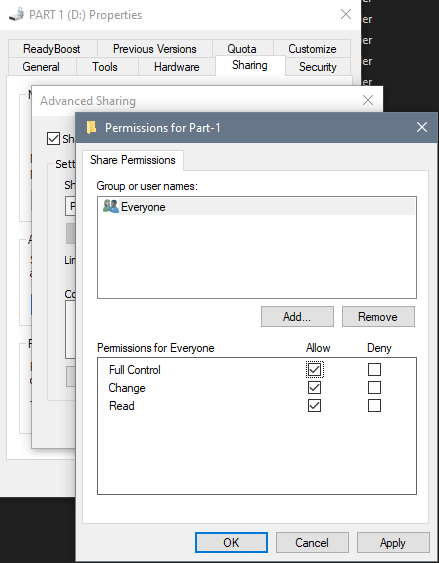
Go to File Explorer, and right-click the drive of your choice. Select Properties > Sharing and Advanced Sharing, and Share this Folder. Don’t forget to set up the share name, and going to Permissions and giving full control to everyone. You should now be able to share files across a local network.
Client-side
Access the network connection of the server by going to File Explorer and identifying the device name of the server. Enter the server’s credentials i.e. username and password.
Set up Remote Desktop Connection
Server-side
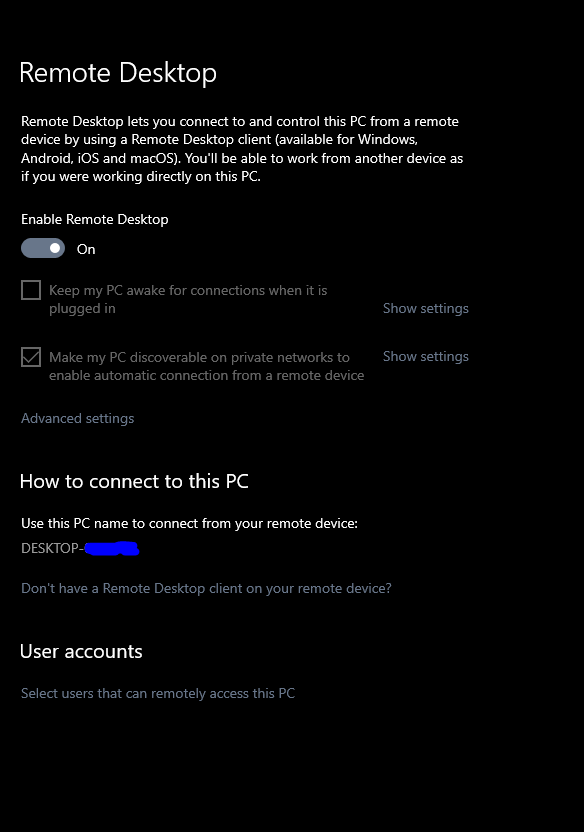
Go to Settings > System > Remote Desktop Settings, and enable Remote Desktop.
Client-side (Windows)
Type in Remote Desktop Connection in the Start Menu and open it. Enter the device name and the credentials i.e. username and password of the server or remote computer. Disregard the missing security certificates for now. You should now be able to control the server remotely from another separate system connected to a network.
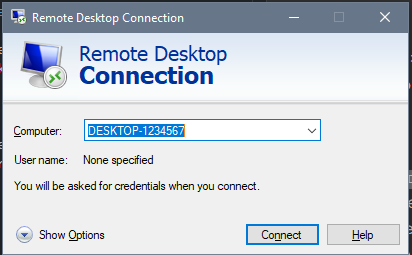
As long as the server is on, you can access it remotely. The same goes for shared drives/folders.
-
I did not install a Linux or BSD-based system for one big reason. That 1 TB Hard Drive was used extensively prior to this project, and already had important data in NTFS that I’m not willing to risk reformatting to something like ZFS. All this for now at least. Besides, I’m already familiar with Windows, and it’s what I have now. ↩︎